
Download PDF to Text Batch Extract Text from PDF files – Free PDF to Text Converter, Batch Extraction Tool
Overview
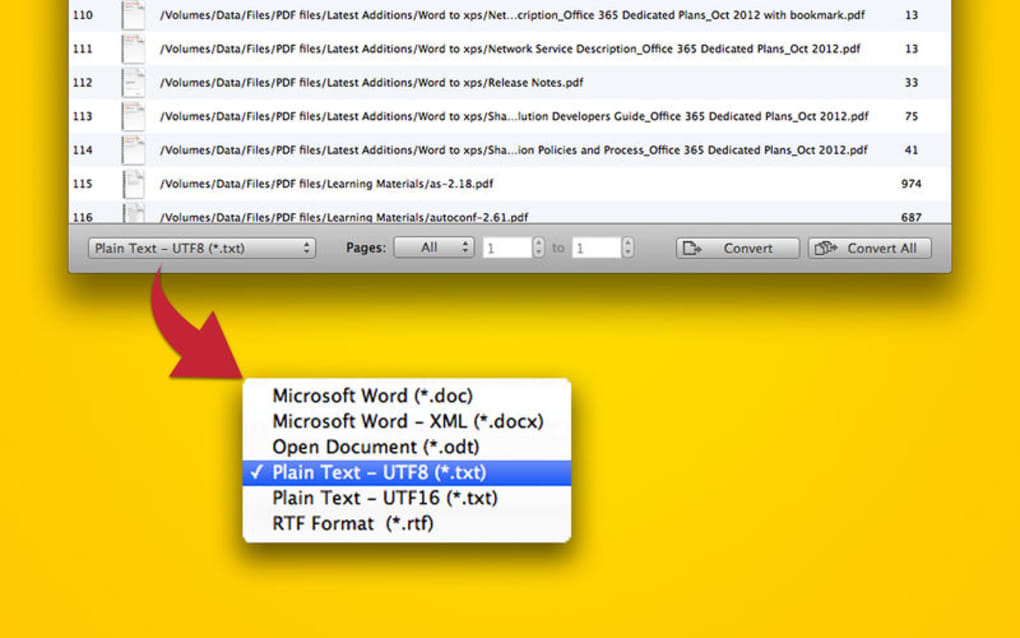
PDF to Text Batch Extract Text from PDF Files is a lightweight, free software application designed for users who need to convert large numbers of PDF documents into editable text formats quickly and securely. Unlike many mainstream PDF suites that require a paid license for batch processing, this tool offers a completely free solution without compromising on functionality. The program supports plain‑text outputs in both UTF‑8 and UTF‑16 encodings, as well as richer formats such as RTF, ODF, and DOC, preserving the original layout, margins, and line breaks whenever possible.
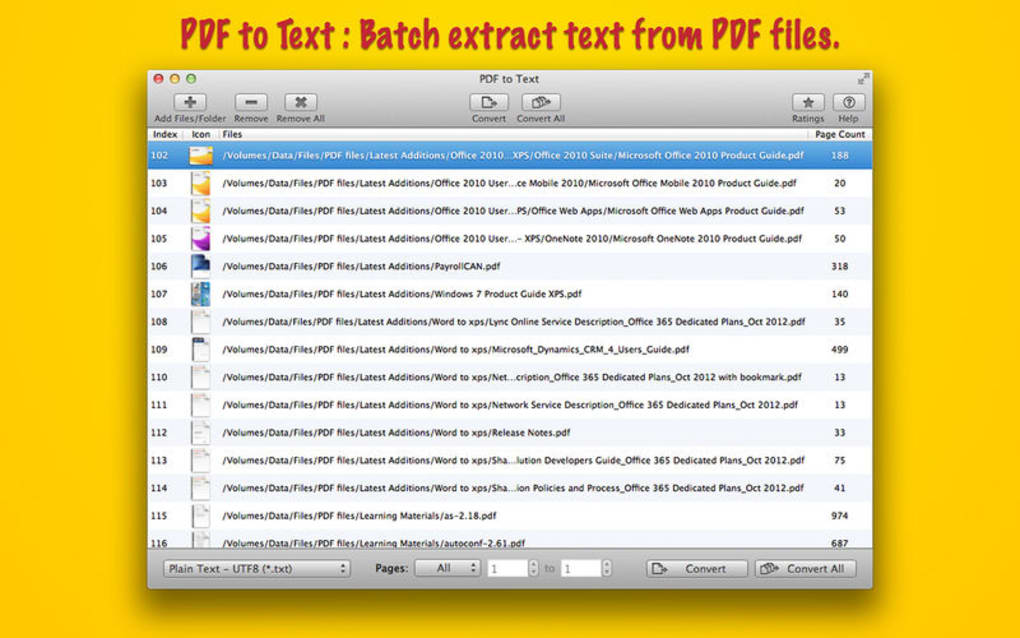
This makes it an ideal choice for researchers, legal professionals, and content creators who must maintain the visual integrity of source documents while extracting searchable text. One of the standout capabilities is its ability to handle password‑protected PDFs, a feature that is often missing from other free converters. The interface follows an intuitive drag‑and‑drop workflow: users simply drop a folder or a selection of files onto the main window, choose the desired output format from a context‑sensitive menu, and start the conversion with a single click.
For power users, right‑click integration in Windows Explorer adds an extra layer of convenience, allowing batch jobs to be launched directly from the file manager. Security is baked into the core of the application. All conversions happen locally on the user’s machine; no data is uploaded to the cloud, eliminating privacy concerns associated with online converters.
The software is also optimized for speed, leveraging multi‑threaded processing to handle dozens of PDFs simultaneously without overwhelming system resources. Whether you are converting a single research paper or an entire archive of scanned contracts, PDF to Text Batch Extract provides a reliable, fast, and completely free way to turn static PDFs into editable, searchable text.
Key Features
- Full batch conversion – process unlimited PDFs in one operation.
- Multiple output formats: plain text (UTF‑8, UTF‑16), RTF, ODF, DOC.
- Layout preservation – maintains original margins, columns, and line breaks.
- Password‑protected PDF support – unlock and convert secure documents.
- Drag‑and‑drop interface with right‑click Explorer integration.
- Local processing only – no cloud upload, ensuring data privacy.
- Multi‑threaded engine – maximizes CPU usage for faster conversions.
- Unicode compliant – handles international characters and symbols flawlessly.
- Free for personal and commercial use – no hidden fees or trial periods.
- Lightweight installer – small footprint, quick setup on Windows, macOS, and Linux.
Each of these features has been engineered with the end‑user in mind. The batch engine automatically detects the optimal number of threads based on the host CPU, which means that a modern quad‑core processor can convert dozens of PDFs in just a few minutes. The layout preservation algorithm analyses the original PDF’s page structure, extracting text while respecting column breaks and paragraph indentation.
This is particularly useful for academic papers that use multi‑column layouts. For organizations dealing with confidential documents, the ability to work entirely offline eliminates the risk of accidental data leakage, a common concern with web‑based converters. Moreover, the program’s support for both UTF‑8 and UTF‑16 ensures that non‑Latin scripts, such as Cyrillic, Arabic, or Asian characters, are rendered correctly in the output files, eliminating the need for post‑conversion re‑encoding.
Installation & Usage Guide
Installing PDF to Text Batch Extract is straightforward and takes just a few minutes. Begin by downloading the installer from the official website (a direct, secure link is provided in the CTA below). The installer is available for Windows (10/11), macOS (10.15 and later), and most major Linux distributions in a portable .tar.gz package.
- Run the installer and follow the on‑screen prompts. The default installation path is
C:\Program Files\PDFtoTextBatchon Windows or/Applications/PDFtoTextBatch.appon macOS. - During setup, you may opt to add a context‑menu entry to Windows Explorer. This allows you to right‑click any PDF or folder and select “Convert with PDF to Text Batch”.
- After installation, launch the application. The main window displays a large drop‑zone area.
- Drag a single PDF or an entire folder onto the drop‑zone. The program automatically lists all detected files.
- Select the desired output format from the drop‑down menu that appears after you right‑click a file or use the toolbar button for bulk format selection.
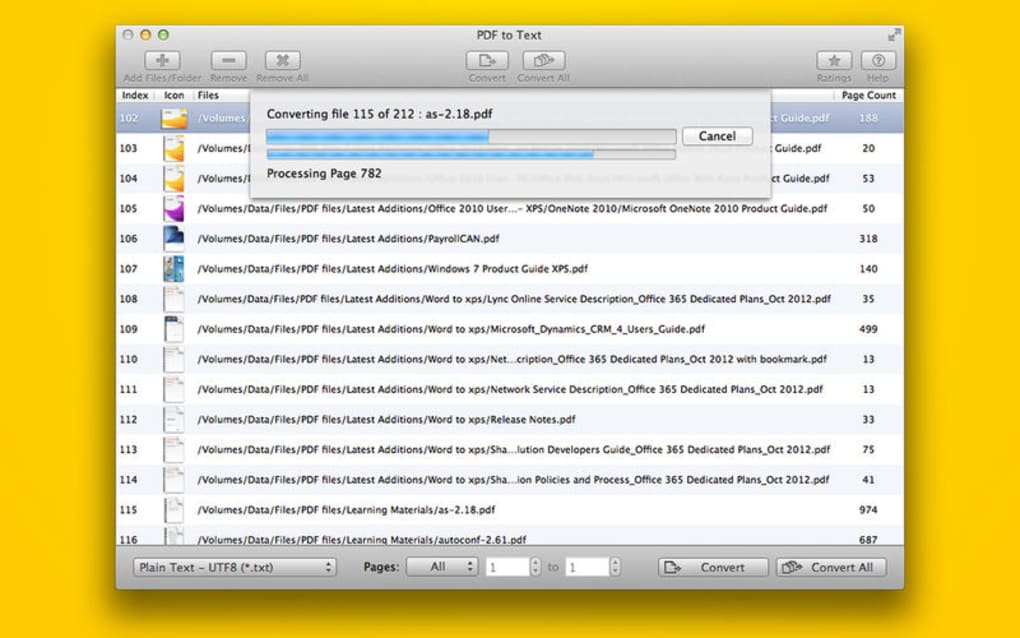
- Click the “Start Conversion” button. A progress bar shows real‑time status for each file.
- When the process finishes, output files are saved in a sub‑folder named
Convertedinside the original directory, preserving the original file names.
Compatibility (itemprop="operatingSystem"): The software runs on Windows 10/11 (both 32‑bit and 64‑bit), macOS Catalina (10.15) and later, and on Linux distributions that support the GTK+ 3 runtime. For Linux users, a command‑line wrapper is also provided, enabling automation via shell scripts or cron jobs. The application does not require any additional runtime libraries beyond the standard system packages, making it ideal for both desktop and server environments.
For users who prefer a silent installation (e.g., IT administrators deploying across a network), the installer supports /SILENT and /DIR= switches. This allows the program to be installed without user interaction, after which batch conversion can be triggered via the command line using the syntax:
PDFtoTextBatch.exe -i "C:\InputFolder" -o "C:\OutputFolder" -f txt -enc utf8
The command‑line mode mirrors all GUI features, including password handling and layout preservation, making it an excellent choice for automated workflows.
Pros and Cons
Pros
- Completely free for both personal and commercial use.
- Robust batch processing – no limit on the number of files per job.
- Supports password‑protected PDFs out‑of‑the‑box.
- Preserves original layout, margins, and column structure.
- Local processing ensures data privacy and security.
- Multi‑platform support (Windows, macOS, Linux).
- Intuitive drag‑and‑drop UI with Explorer context‑menu integration.
- Unicode‑compatible output for international languages.
- Lightweight installer and minimal system footprint.
- Command‑line interface for automation and scripting.
Cons
- No built‑in OCR; scanned image PDFs must be OCR‑processed beforehand.
- Advanced formatting (tables, complex graphics) may not be perfectly retained.
- No direct export to PDF/A or other archival formats.
- Limited support for macOS older than Catalina.
- No cloud sync or collaboration features (by design for privacy).
Frequently Asked Questions
Can PDF to Text Batch Extract convert scanned PDFs?
The application does not include an OCR engine, so it cannot directly extract text from image‑only PDFs. You will need to run the scanned files through a separate OCR tool first, then feed the OCR‑processed PDFs into PDF to Text Batch Extract.
Is there a limit to the number of files I can process in one batch?
No. The software is designed for unlimited batch conversions. The only practical limits are your system’s RAM and CPU resources.
How does the program handle password‑protected PDFs?
When you add a protected PDF to the queue, the application prompts you for the password. After you enter it, the file is decrypted in memory and converted locally, never storing the password on disk.
Can I automate conversions using a script?
Yes. PDF to Text Batch Extract includes a command‑line interface that accepts input folder, output folder, format, and encoding parameters, making it perfect for batch jobs in scripts or scheduled tasks.
Is the software safe from malware and adware?
Absolutely. The installer is digitally signed, and the application does not contain any bundled third‑party ads or telemetry. All processing occurs locally, ensuring a clean, secure experience.
Conclusion & Download CTA
PDF to Text Batch Extract Text from PDF Files fills a noticeable gap in the free‑software market by offering a powerful, privacy‑first batch conversion engine without the price tag of premium PDF suites. Its support for multiple output formats, password‑protected files, and layout preservation makes it a versatile tool for professionals who need to transform large PDF libraries into editable text quickly. While it lacks built‑in OCR, this limitation is clearly communicated and does not detract from its core strength: fast, secure, and completely offline conversion.
If you regularly work with PDFs—whether you’re a researcher gathering citations, a legal assistant preparing case files, or a developer automating document pipelines—this application can save you countless hours. The drag‑and‑drop UI paired with a robust command‑line mode means both novices and power users will find a workflow that fits their needs. Because the software is free, there’s no financial barrier to testing it on a single project, and the open‑source‑friendly licensing ensures you can keep it for long‑term use.
Ready to streamline your PDF workflow? Click here to download PDF to Text Batch Extract now. The installer is lightweight, the process is secure, and you’ll be converting PDFs to clean, searchable text in seconds.







